




 Start
Basic Information
Start
Basic Information
 Pre Scan
 Scanning
 Post Scanning
 Labor
Labor
 Summary
Before starting, ensure you have a clear understanding of your physical inventory. Assess how items are stored, the diversity of media types present (such as brochures or maps), and the condition of the documents.
Start using this calculator by selecting the 'Basic Information' tab and progress through the tabs from left to right. Complete the required fields on each page, which follow a simple process of steps. Upon completion, the calculator will provide a cost and work estimate based on your input. Relevant information and helpful tips are provided throughout the calculator to assist you.

The calculations are influenced by various factors related to the documents, such as their condition and considerations like staples, bindings, etc. We recommend categorizing these factors into distinct 'buckets,' calculating each separately and then aggregating these for the final total. For instance, if you have documents that are new and others that are fragile, create two buckets: one for the new documents and another for the fragile ones. Perform the calculations for each bucket individually.

To estimate costs for each bucket, enter the relevant information under each corresponding tab. After entering all necessary details for a particular category of records, the final tab, 'Results,' will display the calculated figures. Record these numbers or save an instance of this file separately for future reference.
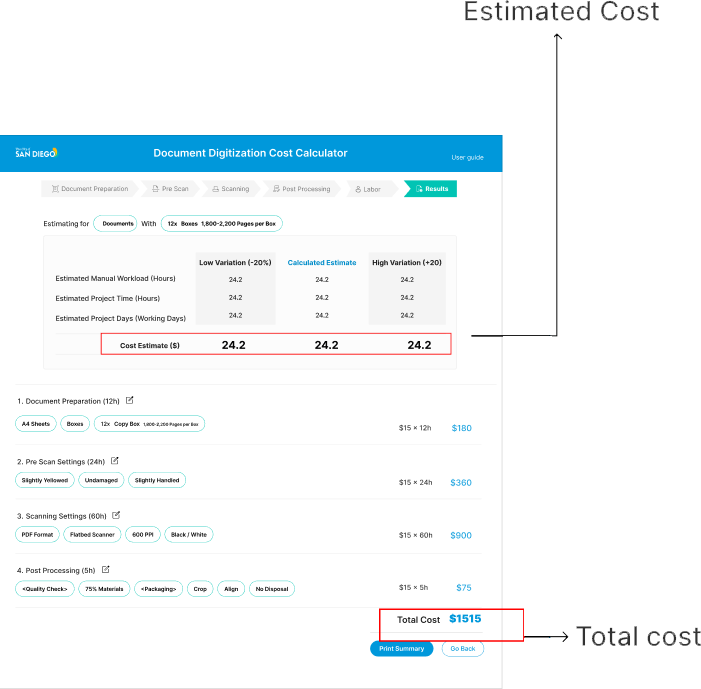
After completing the calculations for each "bucket" of records, you can add the totals of the "Results" tab for the estimated cost of digitizing your entire document collection.

Tab Flow
What is Tab Flow?
- This section explains the functionality of each tab. To navigate, you can either click on the desired tab at the bottom or select its name in the left column for automatic navigation.
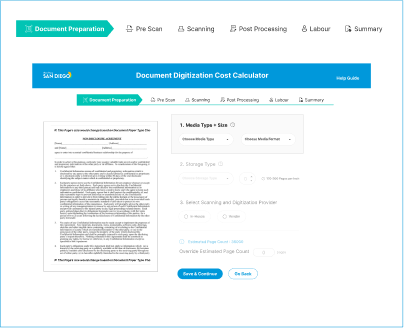
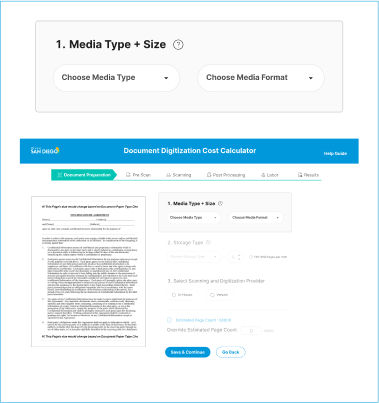
Basic Information
What is Basic Information ?
- This tab covers the fundamental details of each 'bucket' or category. It includes the type of document, size, and quantity, tailored according to the record type.
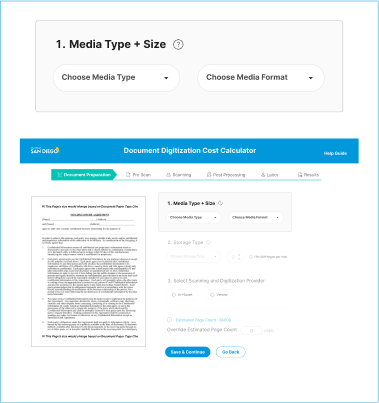
Preparation
What is Preparation ?
- This tab addresses the physical condition of the documents and preparation requirements, such as removing fasteners, seals, or folders at the preparation stage of the digitization process.
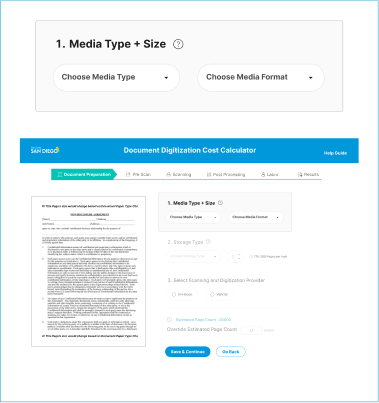
Scanning
What is Scanning ?
- Here, the focus is on the actual scanning phase. It encompasses the scanner settings (like output format and DPI), scanner types, and the personnel responsible for scanning.
- Guiding Influence: The selected material type significantly influences subsequent choices and calculations, guiding the user towards tailored decision-making based on the unique characteristics of the chosen category.

Post -Scanning
What is Post Scanning ?
- This tab deals with the digital phase following the completion of scanning. Tasks covered include making corrections, conducting quality control, and extracting metadata.
Results
What is Results ?
- The results tab will estimate the time the project will take for each specified “bucket” and the cost based on people working on the project and their pay rates. This page also has a summary to review everything and assess the results.
 Start
Basic Information
Pre Scan
Scanning
Post Scanning
Labor
Summary
Start
Basic Information
Pre Scan
Scanning
Post Scanning
Labor
Summary





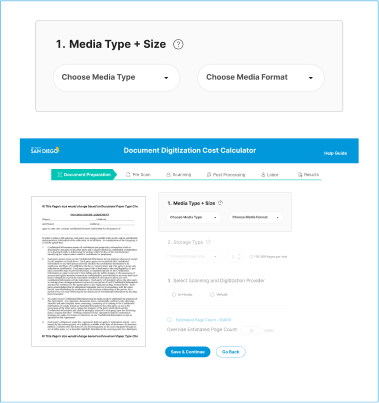
 Media Type
Select the type of media you want to analyse.
The following sections will be updated based on what you select:
Media Format
Storage Type
Storage Type
The way the media is stored. This is affected by the above fields.
“If you ever change the Media Type, make sure you change the value.”
The following sections will be updated based on what you select:
Units for “Enter the …”
Enter The Number of Items
Enter a number, whole or decimal, Based on the units displayed on the right side.
*If you ever updated the above information, make sure to also update this Value.*
This is an user-inputted value.
Media Type
Select the type of media you want to analyse.
The following sections will be updated based on what you select:
Media Format
Storage Type
Storage Type
The way the media is stored. This is affected by the above fields.
“If you ever change the Media Type, make sure you change the value.”
The following sections will be updated based on what you select:
Units for “Enter the …”
Enter The Number of Items
Enter a number, whole or decimal, Based on the units displayed on the right side.
*If you ever updated the above information, make sure to also update this Value.*
This is an user-inputted value.
- Numbers average from 170-200 depending on thickness (caliper) of paper
- Numbers average from 170-200 depending on thickness (caliper) of paper
- Time/motion study (Sources range between 2,000-2,500)
- Estimates range from 1700 -2400 pages; lines up with ~180 page per inch estimate
In-House Scanning
TIf you are scanning the documents in-house, then make sure the box is checked.
If you are sending the materials to a third-party vendor for processing, Then leave the checkbox unselected(empty).
 Estimated Page Count
This the estimated number of pages, Automatically calculated based on the above information.
Estimated Page Count
This the estimated number of pages, Automatically calculated based on the above information.
Please fill in all mandatory fields before proceeding
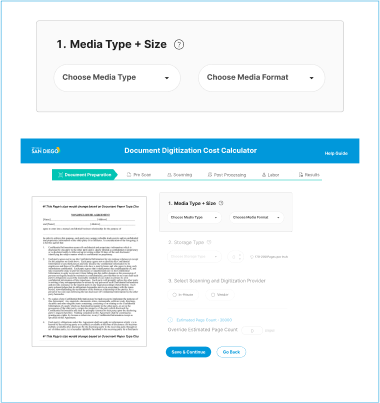
Media Type
What is Media Type ?
- Contextual Foundation: Choosing the general category (e.g., documents, maps) sets the context for subsequent choices in the calculator, establishing a crucial foundation for further decisions.
- Guiding Influence: The selected material type significantly influences subsequent choices and calculations, guiding the user towards tailored decision-making based on the unique characteristics of the chosen category.

Media Format
What is Media format ?
- This step is crucial for precise information about your media's physical dimensions and nature
- It's vital for accurate digitization planning and resource estimation.
- The format choice influences the processing method and required digitization resources.
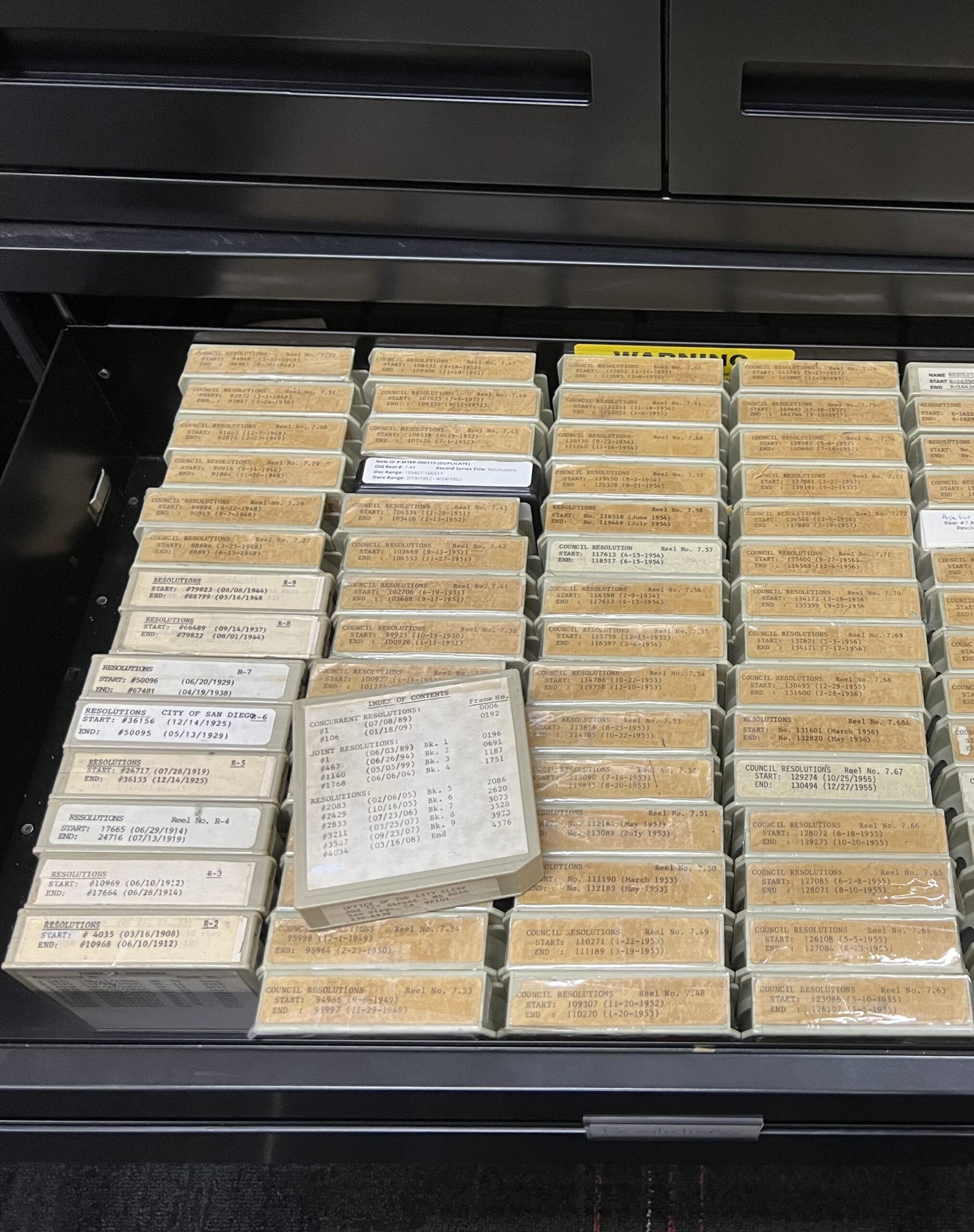
Storage type
What is Storage type ?
- This relates to your current storage or archival method, influenced by previous choices like Media Type and Media Format.
- Storage types can vary widely, from loose sheets and bound volumes to banker boxes and filing cabinets
- The quantity of documents can vary based on the chosen storage type.

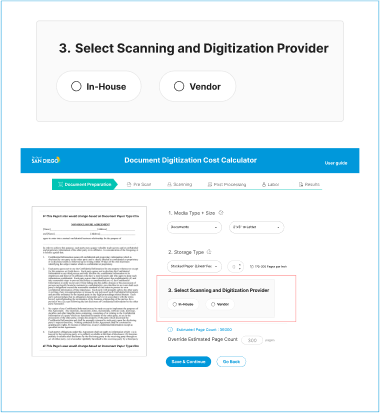
In-House Scanning
What is In-House Scanning
- In-house scanning involves digitizing documents using your organization's resources and staff, utilizing internal scanning equipment and personnel.
- On the other hand, using an external vendor means outsourcing the scanning work to a specialized third-party company.
- This entails sending your documents to the vendor's location for processing.
 Start
Basic Information
Pre Scan
Scanning
Post Scanning
Labor
Summary
Handling Requirements
Select the value that best describes the handling requirements.
Overall Condition
Tape
Check the box if there is tape present in the materials.
Enter the average number of pages that have this exception per 100 pages.
Staples
Check the box if there are staples present in the materials.
Enter the average number of pages that have this exception pr 100 pages.
Paper Clips
Check the box if there are paper clips present in the materials.
Enter the average number of pages that have this exception per 100 pages.
Post-its
Check the box if there are Post-it notes present in the materials.
Enter the average number of pages that have this exception per 100 pages.
Text Smudging
Check the box if text is smudged/unclear on the documents.
Enter the number of pages that have this exception per 100 pages.
Folder Jackets
Check the box if the documents are in folder jackets.
Enter the average number of folder jackets per 100 pages.
Tears and folds
Check the box if there are any tears, folds, and/or wrinkles in the documents.
Enter the average number of pages that have this exception per 100 pages.
Binding
Check the box if the document are bound together. Enter the average number of bindings per 100 pages.
Embossed Seals
Check the box if there are any embossed materials (like seals) present in the materials. Enter the average number of pages that have this exception per 100 pages.
Start
Basic Information
Pre Scan
Scanning
Post Scanning
Labor
Summary
Handling Requirements
Select the value that best describes the handling requirements.
Overall Condition
Tape
Check the box if there is tape present in the materials.
Enter the average number of pages that have this exception per 100 pages.
Staples
Check the box if there are staples present in the materials.
Enter the average number of pages that have this exception pr 100 pages.
Paper Clips
Check the box if there are paper clips present in the materials.
Enter the average number of pages that have this exception per 100 pages.
Post-its
Check the box if there are Post-it notes present in the materials.
Enter the average number of pages that have this exception per 100 pages.
Text Smudging
Check the box if text is smudged/unclear on the documents.
Enter the number of pages that have this exception per 100 pages.
Folder Jackets
Check the box if the documents are in folder jackets.
Enter the average number of folder jackets per 100 pages.
Tears and folds
Check the box if there are any tears, folds, and/or wrinkles in the documents.
Enter the average number of pages that have this exception per 100 pages.
Binding
Check the box if the document are bound together. Enter the average number of bindings per 100 pages.
Embossed Seals
Check the box if there are any embossed materials (like seals) present in the materials. Enter the average number of pages that have this exception per 100 pages.



 Estimated time
The estimated time this section will take for the project.
If you feel the numbers are off and /or you already have data for this section, you can override this value using the field below.
ManualTime Adjustment
This option is a manual override, which will be used instead of he above data when calculation if you know exactly how much more time this preparation will add.
WARNING: Leave at 0 if you are unsure what to put here.
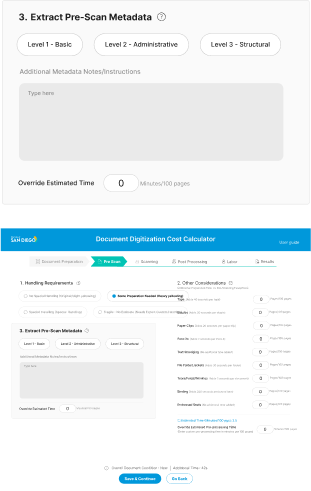
Level 1 Metadata
Level 1 metadata includes information that directly describes the content: things like the title and author.
Level 2 Metadata
Level 2 Metadata provides information about the source and management of content.
Level 3 Metadata
Level 3 Metadata includes structural information about a document, by showing the relationship between different parts.
Additional Notes/Instructions
A place for you to enter any additional notes and instructions you have for this bin.
Max 500 chars.
Estimated Time
The estimated time this section will take for the project.
If you feel the numbers are off and/or you have data for this section, You can override this value using the field below.
Manual Time Adjustment
This option is a manual override, which will be used instead of the above inputs when calculation if you know exactly ho much more time this preperation will add.
* WARNING: Leave at 0 if you are unsure wha to put here.
Estimated time
The estimated time this section will take for the project.
If you feel the numbers are off and /or you already have data for this section, you can override this value using the field below.
ManualTime Adjustment
This option is a manual override, which will be used instead of he above data when calculation if you know exactly how much more time this preparation will add.
WARNING: Leave at 0 if you are unsure what to put here.
Level 1 Metadata
Level 1 metadata includes information that directly describes the content: things like the title and author.
Level 2 Metadata
Level 2 Metadata provides information about the source and management of content.
Level 3 Metadata
Level 3 Metadata includes structural information about a document, by showing the relationship between different parts.
Additional Notes/Instructions
A place for you to enter any additional notes and instructions you have for this bin.
Max 500 chars.
Estimated Time
The estimated time this section will take for the project.
If you feel the numbers are off and/or you have data for this section, You can override this value using the field below.
Manual Time Adjustment
This option is a manual override, which will be used instead of the above inputs when calculation if you know exactly ho much more time this preperation will add.
* WARNING: Leave at 0 if you are unsure wha to put here.
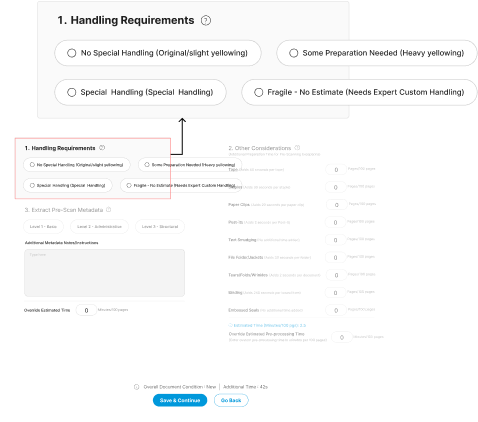
Handling Requirement
What is Handling Requirement?
- This section addresses the need for special care in processing older, smaller, or particularly delicate documents.
- Such materials often demand extra precautions during handling to prevent damage or deterioration.
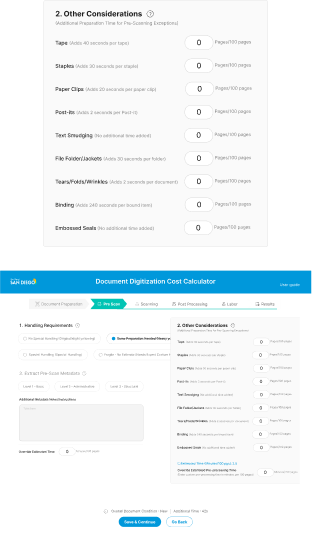
Other Considerations
The "Other Considerations" section addresses various physical attributes and conditions of documents
- Attachments and Elements: Identify and quantify tape, staples, paper clips, or post-its in documents, requiring special handling or removal during digitization.
- Document Condition: Assess smudging, tears, folds, wrinkles, or embossed seals, noting instances per 100 pages to guide preservation methods and maintain scanning quality.
- Preservation and Accuracy: Balance quality scanning with document integrity, addressing exceptions in attachments and conditions to ensure accurate digital representation.
Metadata
What is Metadata?
- Metadata enhances understanding, accessibility, and organization by providing context and details. Widely used in digital and library settings, it helps categorize items such as documents, books, or songs.
- We'll use the Dublin Core Metadata Set, including Creator, Contributor, Title, Date, and others, to ensure meaningful and accessible information
- Level 1, or Basic or Descriptive metadata, provides information about the content - such as the title, author, and keywords. This metadata helps you understand the content and is a required minimum to include.
- Level 2, or Administrative metadata, gives information about the source and management of the content, such as when it was created, who has the rights to it, and how it has been preserved. This type of metadata helps manage and maintain the content, ensuring its authenticity and usability. It is recommended to include if it is available to you.
 Start
Basic Information
Pre Scan
Scanning
Post Scanning
Labor
Summary
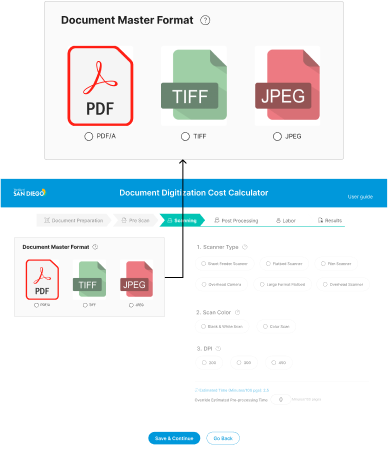
Master Format
The format for the output file.
For example: PDF/A & TIFF are primarily used for text while JPG, PNG, or GIF are used for images.
Start
Basic Information
Pre Scan
Scanning
Post Scanning
Labor
Summary
Master Format
The format for the output file.
For example: PDF/A & TIFF are primarily used for text while JPG, PNG, or GIF are used for images.


 DPI
The DPI setting for the scan Higher is better resolution, but will take more tie to complete.
200 - Black & White Text Document
300 - Simple colored diagrams or text
600/800 - Photographs with high detail
Scanner
The type of scanner that will be used to process the documents.
Colored Scanning
Check the box if you are scanning in color.
Colored scanning is significantly slower and produces larger files, leave unchecked if scanning in black and white
Manual Time Adjustment
This option is a manual override, which will be used inserted of the above inputs when calculating if you already know exactly how much more time this preparation will add.
WARNING: Leave at 0 if you are unsure what to put here.
DPI
The DPI setting for the scan Higher is better resolution, but will take more tie to complete.
200 - Black & White Text Document
300 - Simple colored diagrams or text
600/800 - Photographs with high detail
Scanner
The type of scanner that will be used to process the documents.
Colored Scanning
Check the box if you are scanning in color.
Colored scanning is significantly slower and produces larger files, leave unchecked if scanning in black and white
Manual Time Adjustment
This option is a manual override, which will be used inserted of the above inputs when calculating if you already know exactly how much more time this preparation will add.
WARNING: Leave at 0 if you are unsure what to put here.
Document Master Format
What is Document Master Format?
- This selection determines how the digitized documents will be stored and accessed, influencing compatibility with different software and platforms and the quality and size of the files. Examples include TIFF and PDF/A for text files.
Scanner Type
Types of Scanner
- Automatic feeder : scanners are best for scanning multiple pages, such as stacks of paper documents. This type of scanner is appropriate for most documents currently in storage.
- Flatbed scanners : are for items that cannot be fed through automatic feeders, like photographs, fragile documents, etc. Large-format flatbeds are explicitly made for larger documents like maps, blueprints, and architectural drawings.
- Overhead (V-cradle) : scanners capture an image from above; they can also hold books open at an angle to take pictures of 2 pages at a time.
DPI Settings
What are DPI Settings?
- Higher DPI settings result in better image clarity and detail but can also increase the file size and scanning time. Selecting the appropriate DPI is crucial for balancing image quality, storage requirements, and processing speed.
- A DPI value of 300 is optimal for normal paper documents in most cases. Digital scans of large negatives and transparencies are appropriate at 600 DPI for standard quality and 1200 DPI for high quality.
 Start
Basic Information
Pre Scan
Scanning
Post Scanning
Labor
Summary
Manual QC
Select how much of the materials will be manually checked for QC.
Round to nearest value: 25%, 50%, 75%, 100%
Automatic QC
If you are having software do an automatic QC/QA process check,
select the box, otherwise leave unselected
Manual Time Adjustment
This option is a manual override which will be used instead of the above inputs when calculation if you exactly how much more time this preparation will add.
WARNING: Leave at 0 if you are unsure what to put here.
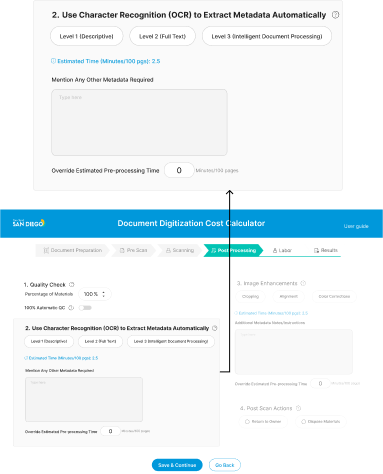
Level 1 Metadata
Level 1 metadata includes information that directly describes the content; Things like the title and author.
Level 2 Metadata
Level 2 Metadata provides information about the source and n=management of content.
Level 3 Metadata
Level 3 Metadata includes structural information about a document, by showing the relationship between different parts.
Estimated Time
The estimated time this section will take for the project.If you feel the numbers are off and/or you already have data for this section, you ca override this value using the field below.
Additional Notes/nstructions
A place for you to enter any addition notes and instructions you have for this bin. Max 500 chars.
Manual Time Adjustments
This option is a manual override, which will be used instead of the above inputs when calculating if you already know exactly how much more time this preparation will add.
WARNING: Leave at 0 if you are unsure what to put here.
Returning Materials
Check the box if you are returning the materials to their owner. This is normally reserved for hen materials are loaned from an external party for preservation or city use.
Leave the box unchecked if you will be keeping the materials.
Start
Basic Information
Pre Scan
Scanning
Post Scanning
Labor
Summary
Manual QC
Select how much of the materials will be manually checked for QC.
Round to nearest value: 25%, 50%, 75%, 100%
Automatic QC
If you are having software do an automatic QC/QA process check,
select the box, otherwise leave unselected
Manual Time Adjustment
This option is a manual override which will be used instead of the above inputs when calculation if you exactly how much more time this preparation will add.
WARNING: Leave at 0 if you are unsure what to put here.
Level 1 Metadata
Level 1 metadata includes information that directly describes the content; Things like the title and author.
Level 2 Metadata
Level 2 Metadata provides information about the source and n=management of content.
Level 3 Metadata
Level 3 Metadata includes structural information about a document, by showing the relationship between different parts.
Estimated Time
The estimated time this section will take for the project.If you feel the numbers are off and/or you already have data for this section, you ca override this value using the field below.
Additional Notes/nstructions
A place for you to enter any addition notes and instructions you have for this bin. Max 500 chars.
Manual Time Adjustments
This option is a manual override, which will be used instead of the above inputs when calculating if you already know exactly how much more time this preparation will add.
WARNING: Leave at 0 if you are unsure what to put here.
Returning Materials
Check the box if you are returning the materials to their owner. This is normally reserved for hen materials are loaned from an external party for preservation or city use.
Leave the box unchecked if you will be keeping the materials.
Quality Check
What is Document Master Format?
- Manual Quality check : This selection determines the extent of human testing in reviewing the digitized materials for accuracy and quality. The higher the percentage, the greater the portion of the material that will be manually inspected, ensuring higher accuracy and adherence to standards but also increasing the required hours.
- Automatic Quality check : Choosing this option activates a comprehensive automatic quality control process performed by software. The software will systematically review the digitized documents, employing algorithms to detect and flag potential errors or quality issues in the entire batch without manual intervention.

Character Recognition (OCR
What is Character Recognition (OCR)?
- OCR (Optical Character Recognition) technology converts the text in scanned images into machine-readable text, effectively digitizing printed or handwritten documents. This process makes the content searchable and editable, significantly enhancing the accessibility and usefulness of the documents. Implementing OCR is particularly beneficial for improving information retrieval and facilitating the work of citizens and city employees.
 Start
Basic Information
Pre Scan
Scanning
Post Scanning
Labor
Summary
Start
Basic Information
Pre Scan
Scanning
Post Scanning
Labor
Summary
|
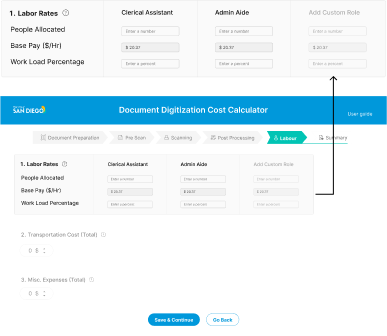
17. Labor Rates *
Labor Rates
Prep work for digitization projects is a clerical activity.
Clerical Assistants – E Step Hourly
Salary as of 12/14/2023 $20.37
Admin Aide 1 – E Step Hourly
Salary as of 12/14/2023 $30.33
|
Clerical Assistant | Admin Aide 1 | |
|---|---|---|---|
|
People Allocated
People Allocated
The number of people allocated to the scanning process.
|
|||
|
Base Pay ($/Hr)
Base Pay
The pay($/hour) for this specific role.
E step Hourly as of 12/14/2023
|
|||
|
Percentage of Work Load
Percentage of Work
The amount of the total work for the project this role will do.
For example, if this role completes 40% of the work involved across the entire project, the enter “40” here.
All 3 percentages should add up to 100%
|
Transportation Cost
If you know the cost of transporting the materials for the entire project, add that cost here.
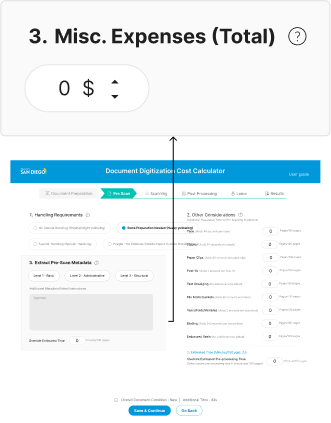
Misc Expenses
If you know the cost of all mist expenses for the entire project, add that cost here.
Labor Rates
What is Labor Rates?
- This selection determines how the digitized documents will be stored and accessed, influencing compatibility with different software and platforms and the quality and size of the files. Examples include TIFF and PDF/A for text files.
Transportation Cost
What is Transportation Cost?
- Enter the cost estimate for transferring documents to and from the scanning and digitization location. Enter the cost of shipping the entire lot for which you are creating the estimate.

Misc. Expenses
What are Misc. Expenses ?
- Enter any other costs related to this digitization effort not already included in this estimate, like security, storage, etc. Enter the cost for the entire lot you are creating the estimate for.
 Start
Basic Information
Pre Scan
Scanning
Post Scanning
Labor
Summary
Start
Basic Information
Pre Scan
Scanning
Post Scanning
Labor
Summary
| Low Estimates (-20%) |
Calculated Estimate
Calculated Estimate
Calculated estimate based on the data provided
|
High Estimates (+20%) | |
|---|---|---|---|
| Estimated Manual Workload (Hours)
Manual Workload
Total workload for the staff allocated to the project
|
|||
|
Estimated Project Time (Hours)
Project Time
Minimum time needed to complete the project
|
|||
| Estimated Project Time (Working Days) | |||
| Cost Estimate ($) |

| Rates | Clerical Assistant | Admin Aide 1 | |
| People Allocated | |||
| Base Pay ($/Hr) | $ 20.37 | $ 30.33 | |
| Percentage of Work Load |


